
SIEW Registration User Guide
Welcome to the Singapore International Energy Week (SIEW) registration system! This guide walks you through the four registration options to help you choose the right one and complete your registration successfully.
Registration Options Overview
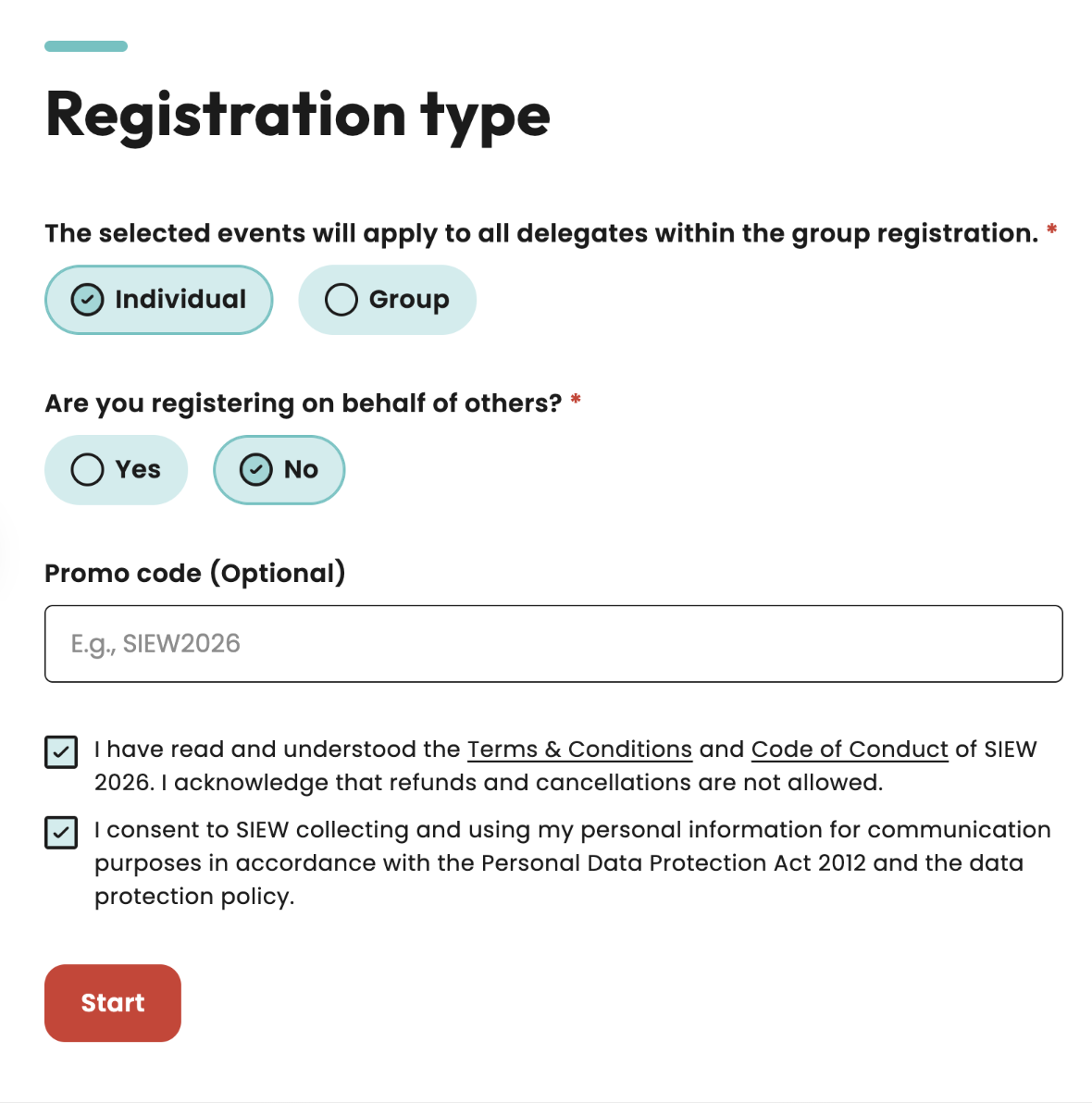
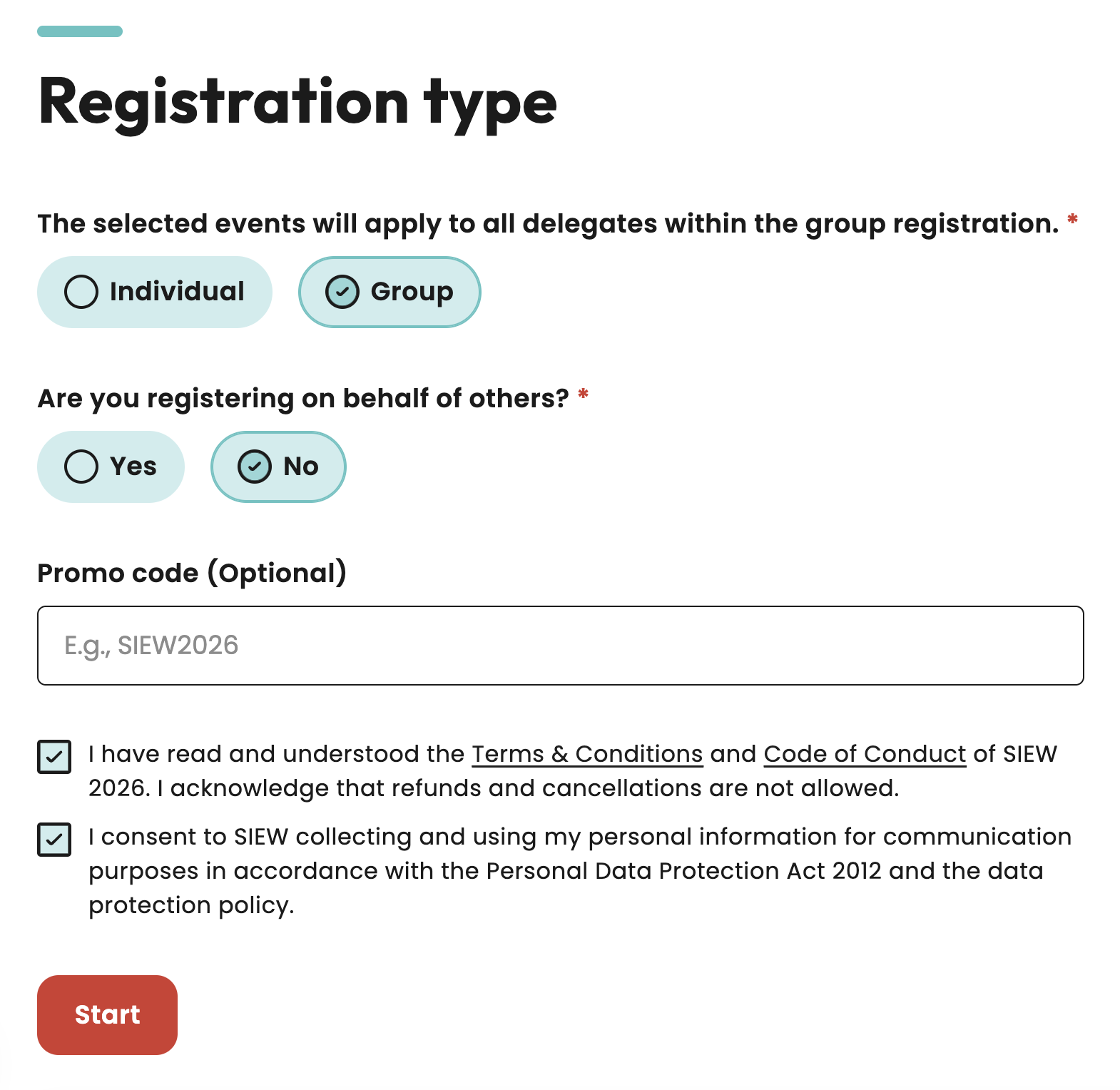
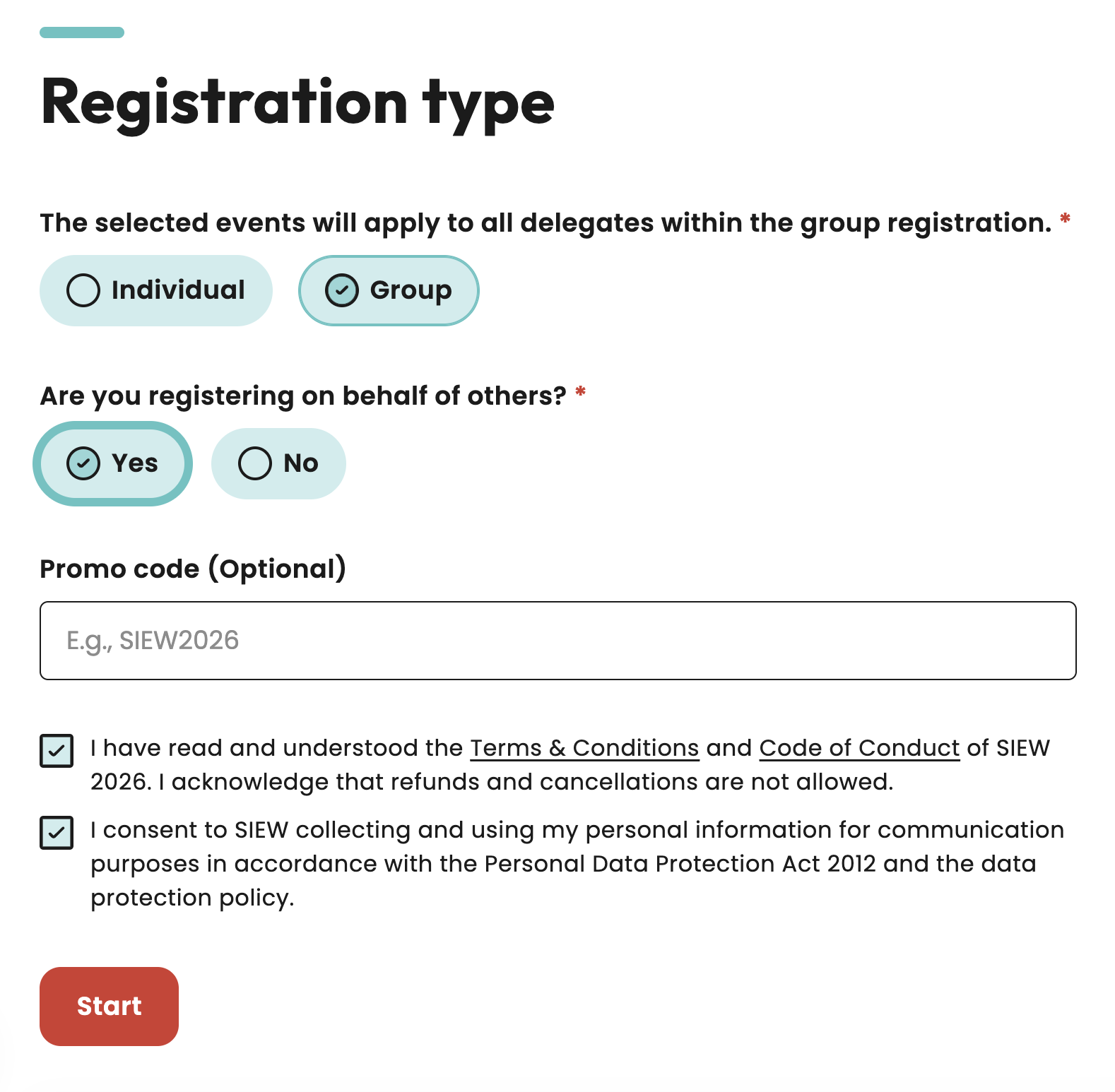
Before you start, select the registration type that suits your needs best. If you want to register as part of a group, choose “Group” and select “No” if you are not registering on behalf of others:
- Self Registration: Register for yourself only
- Individual On Behalf: Register on behalf of someone from your organisation
- Group Registration: Register for yourself and a group of delegates, with yourself as an attending Point of Contact (POC) for the group (multiple participants)
- Group On Behalf: Register on behalf of a group of delegates, designating yourself as the POC (multiple participants) in which you will not be attending the event
1. Self Registration
Getting Started - Register
Self Registration:
Step 1: Landing Page Selection
What you'll see: The main registration page with four registration options and a promotional code field.
What to do:
- Select your preferred registration type
- Enter a promotional code, if applicable
- Check the box after reviewing the Terms &
Conditions, Code of Conduct and data
protection policy
- Click “Start” to begin your registration
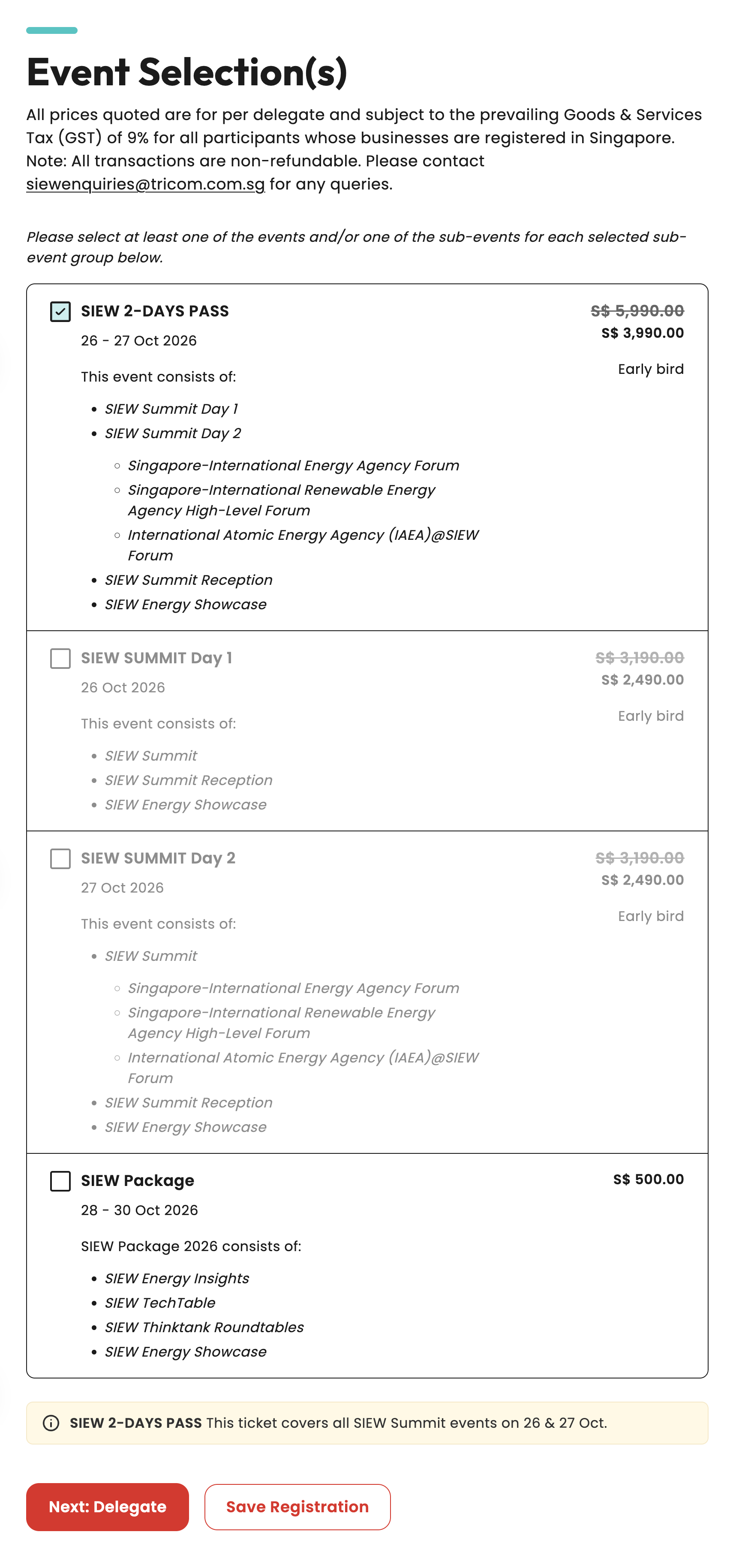
Step 2: Event Selection(s)
What you'll see: A list of available SIEW events with pricing and descriptions.
What to do:
- Browse through the available events
- Refer to description for events included in each pass
- Select the pass you wish to purchase
- Click “Next: Delegate”
Tips: Save Your Registration
Step 1: Save Registration
You can save your registration progress anytime. Just click on “Save Registration” on the pages where this option is available.
What to do:
- Click “Save Registration”
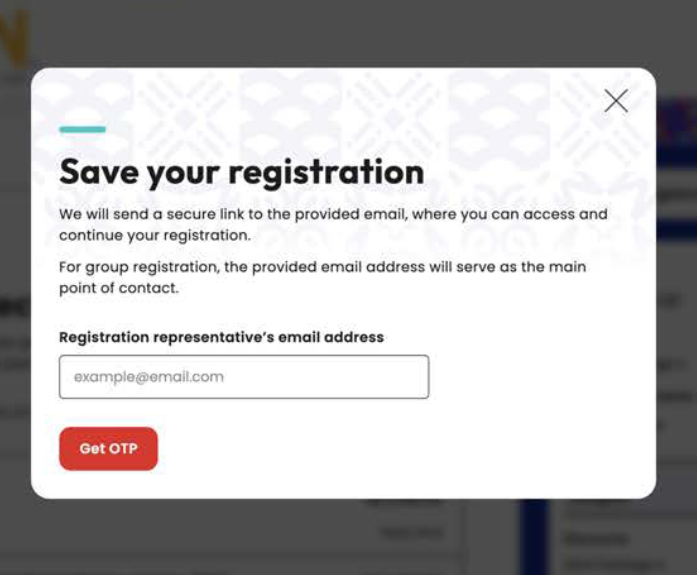
Step 2: Email Verification
What you'll see: A pop-up titled “Save Your Registration” will prompt the user to enter their intended email for registration.
What to do:
- Key in your intended email for registration
- Click “Get OTP”
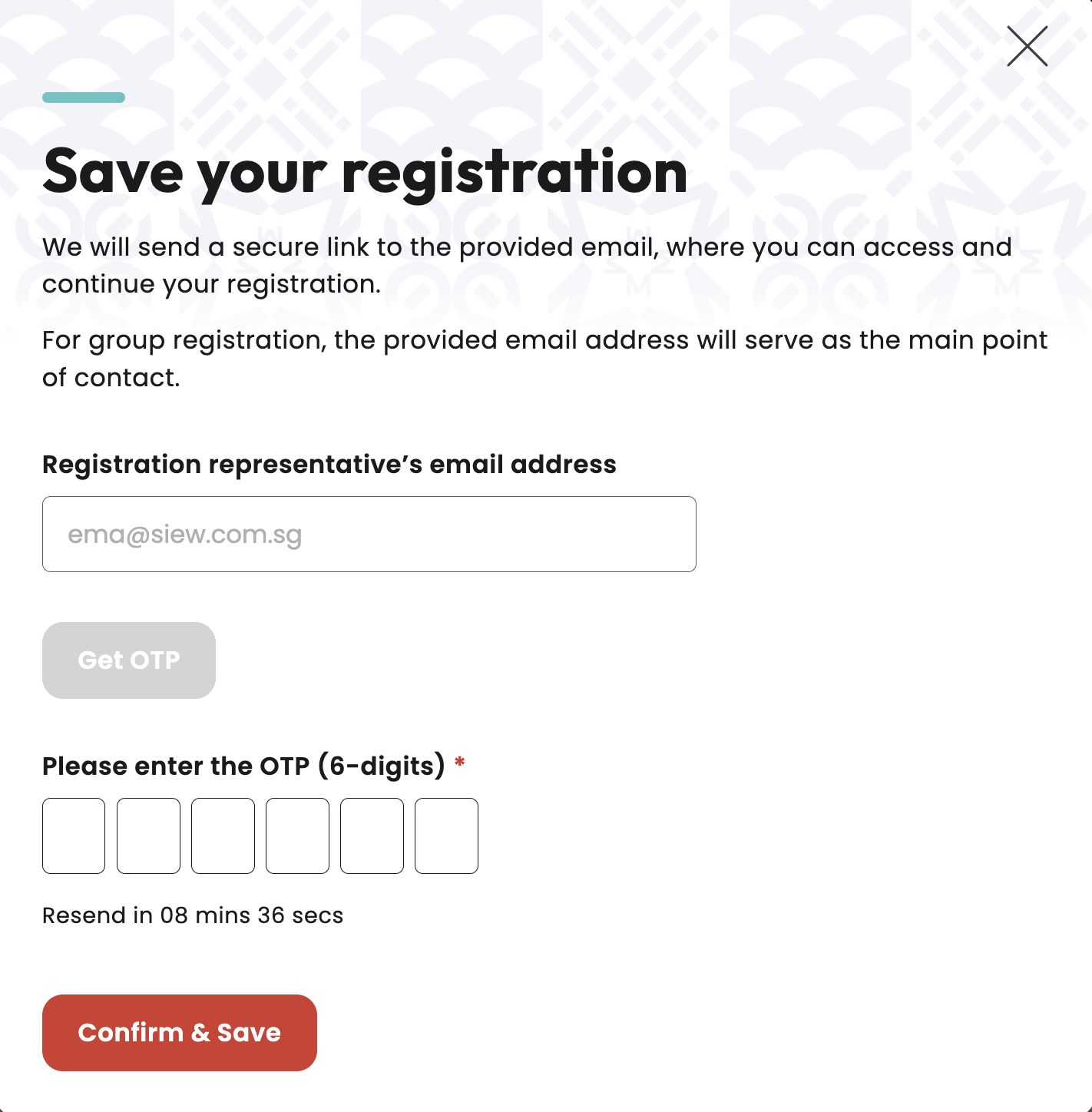
Step 3: Email Verification
What to do:
- Check your inbox for the OTP (One-
Time Password)
- Enter the OTP to verify your email
- Click “Confirm & Save”
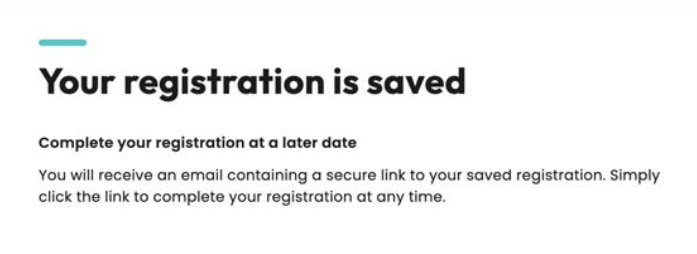
Your Registration Is Saved
What you'll see: A Your registration is saved page will display, indicating that you will receive an email containing a secure “link” to complete your registration when you're ready.
Tips: Return To Saved Registration
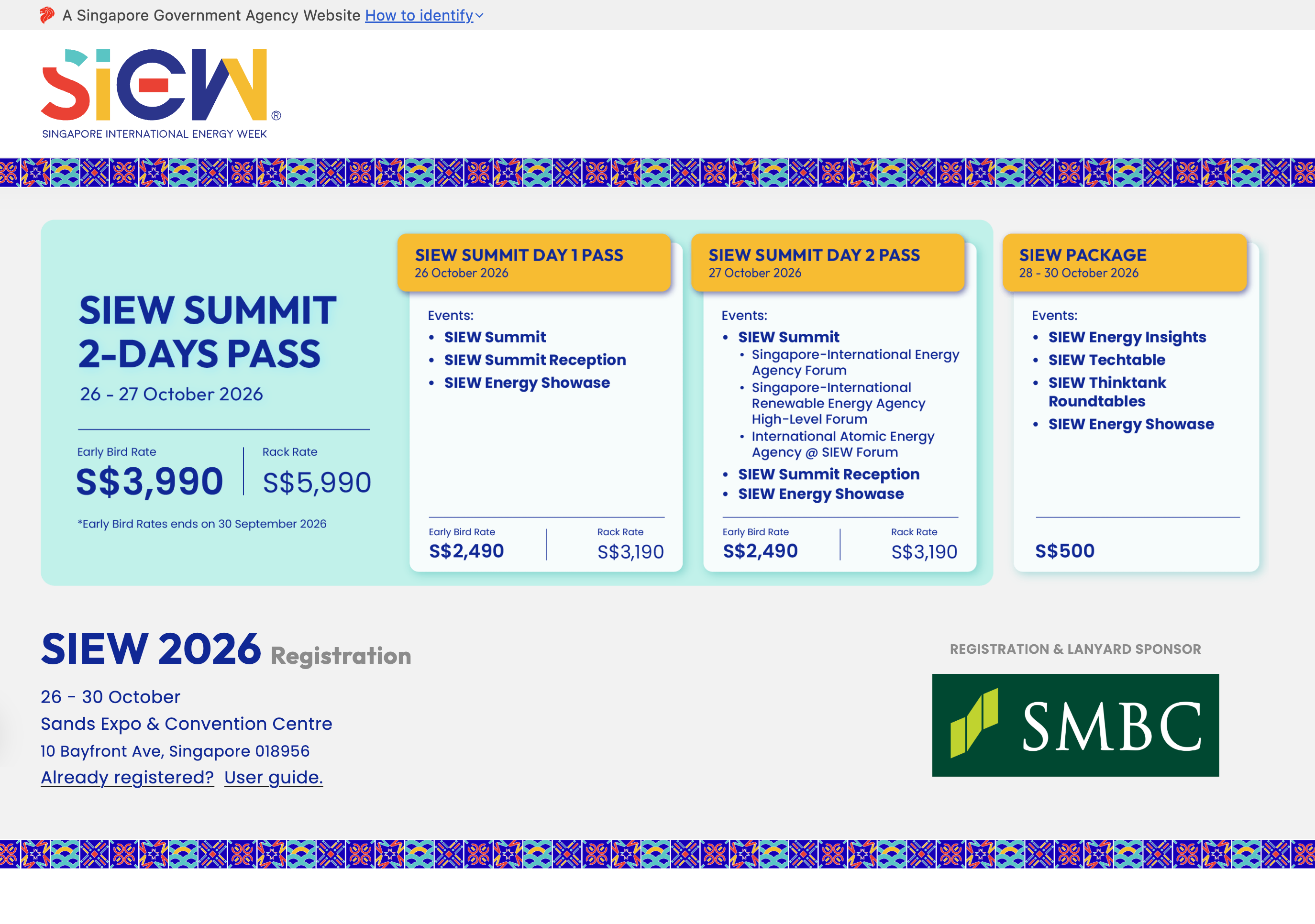
Step 1: Landing Page Selection
What you'll see: To access your saved registration, return to the SIEW homepage. Alternatively, you can access by clicking on the secured “link” in your inbox titled [Reminder] Complete your registration for SIEW 2026!
What to do:
- Click “Already Registered?”
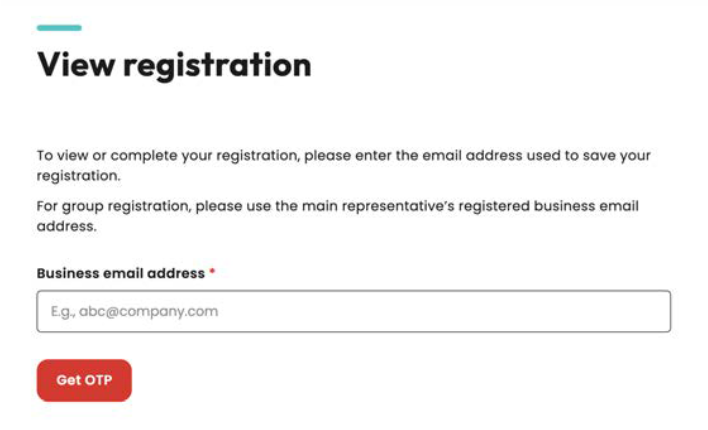
Step 2: Email Verification
What you’ll see: View registration page will appear where you can verify your registered email address to access or complete your registration.
Email Verification
What to do:
- Click “Get OTP”
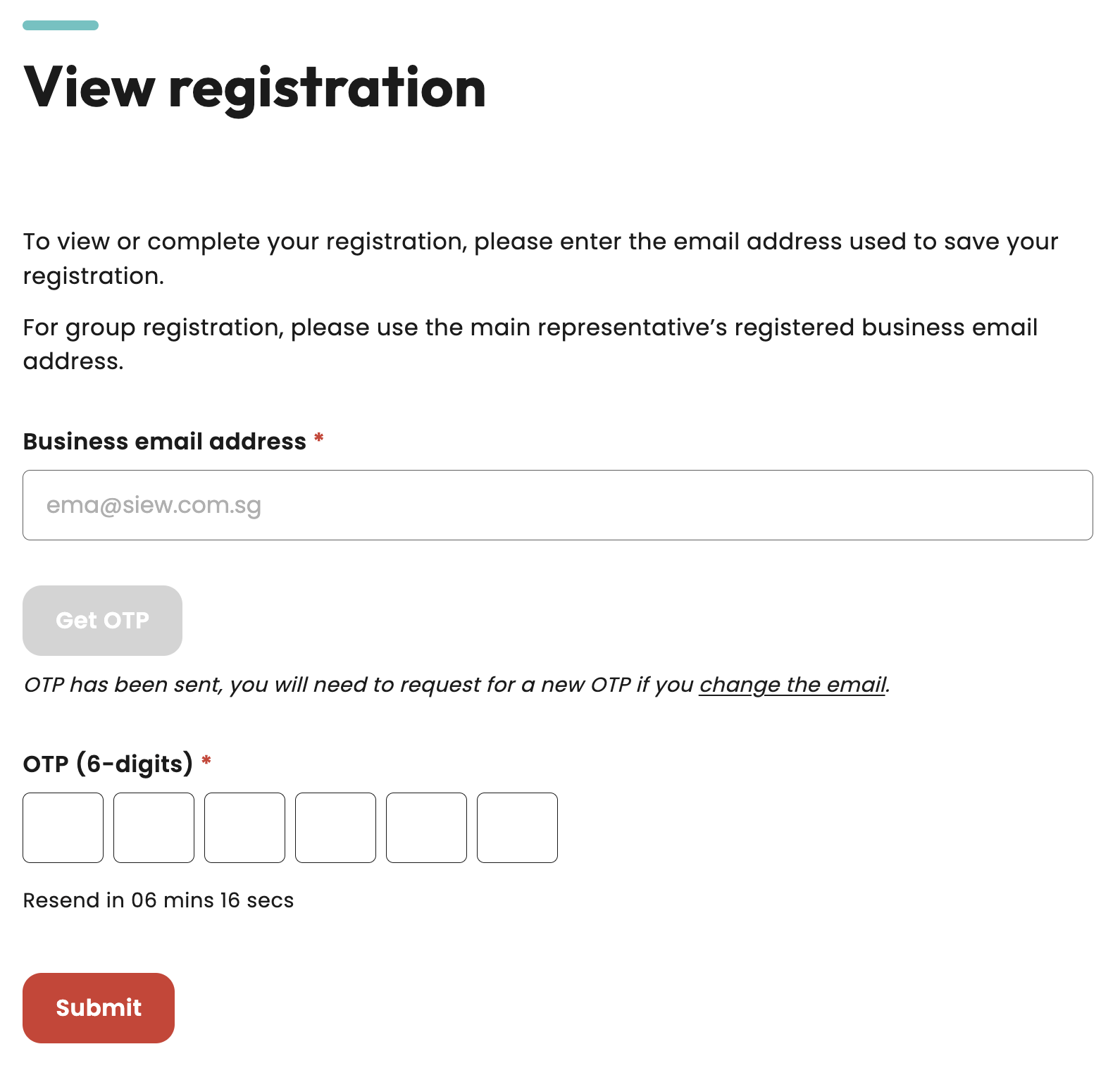
Step 3: Email Verification
What to do:
- Check your inbox for the OTP (One-
Time Password)
- Enter the OTP to verify your email
- Click “Submit”
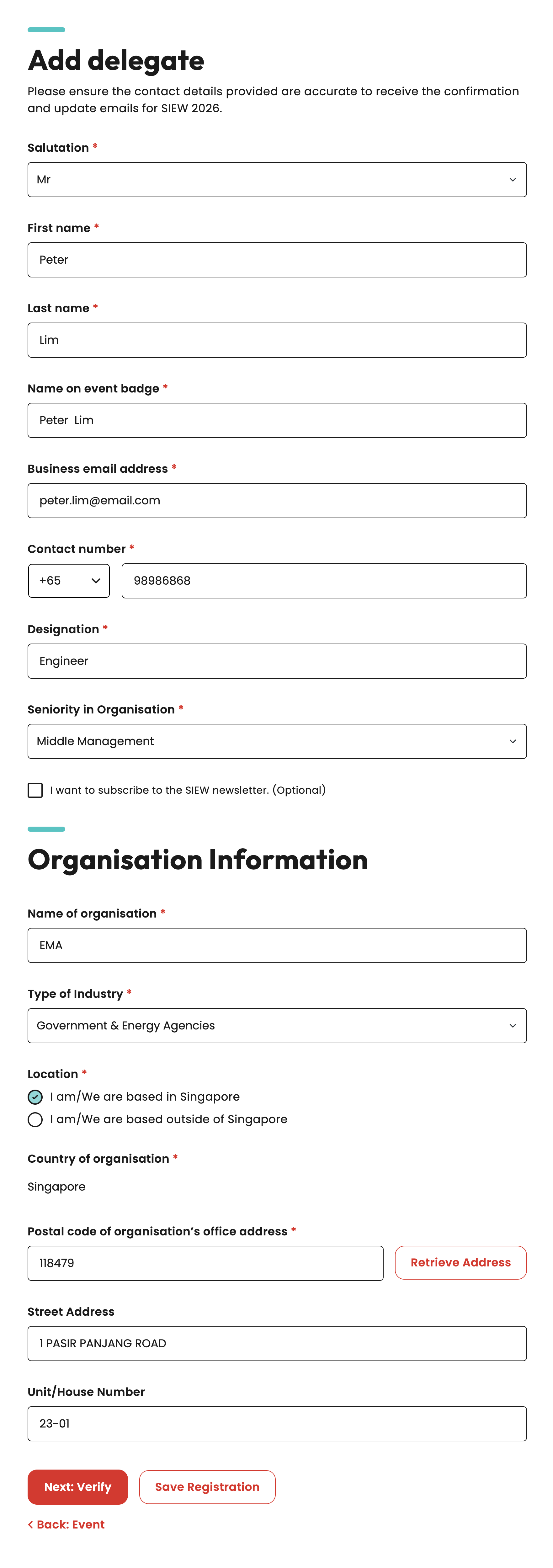
Step 3: Add delegate
What you'll see: Forms for your delegate details and organisation information.
What to do:
- Fill in all mandatory personal information fields.
- Provide your organisation details and location
- Double-check all information for accuracy
- Click “Next: Verify”
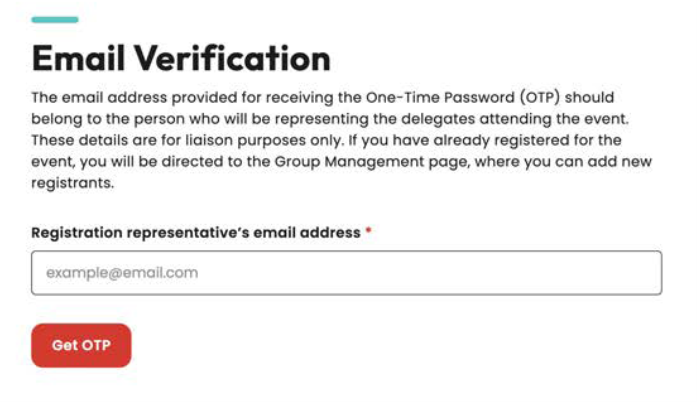
Step 4: Email Verification
What you'll see: An email input field with verification instructions.
What to do:
- Click “Get OTP”
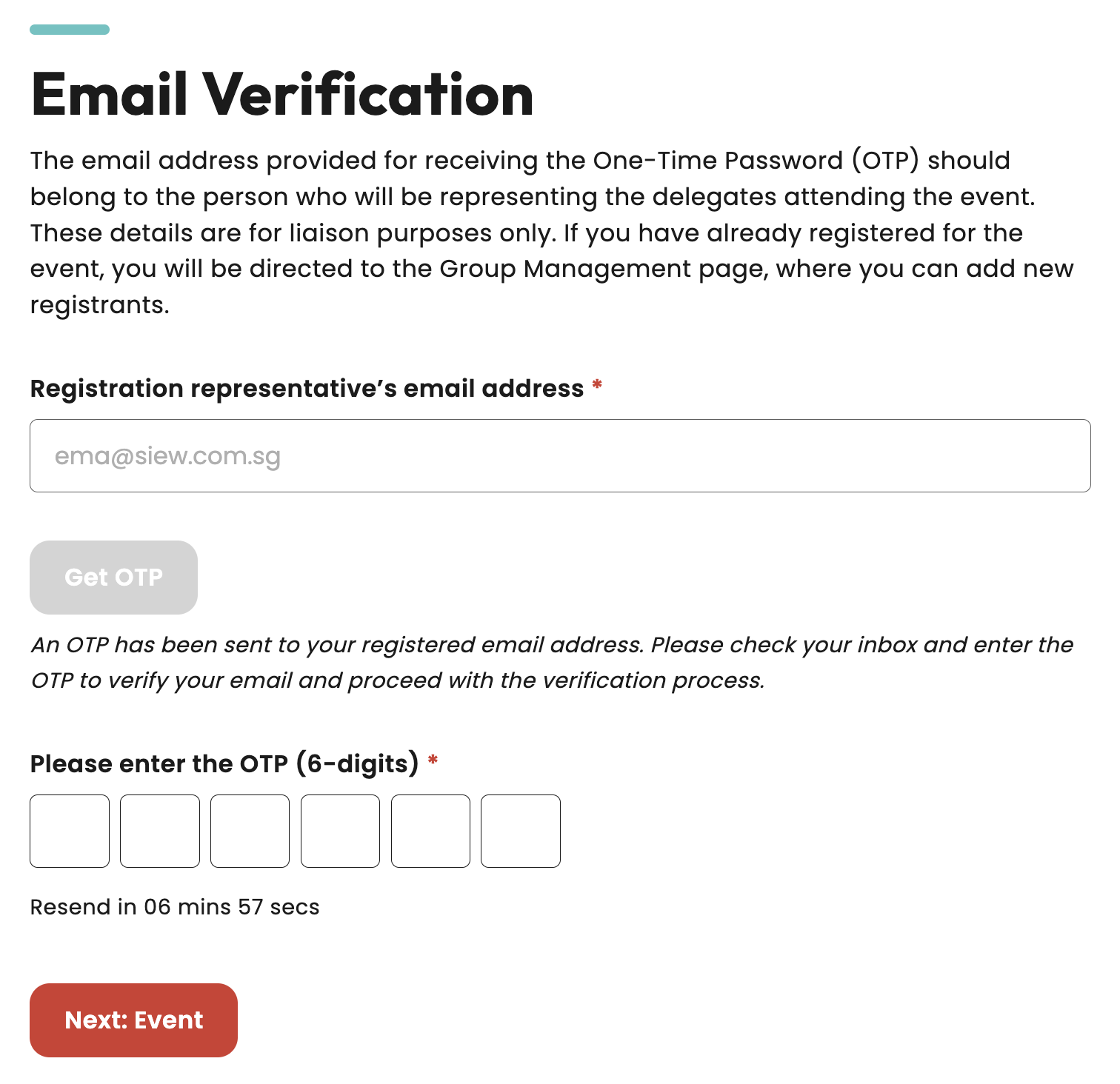
Step 5: Email Verification
What to do:
- Check your inbox for the OTP (One-Time Password)
- Enter the OTP to verify your email
- Click “Next: Event”
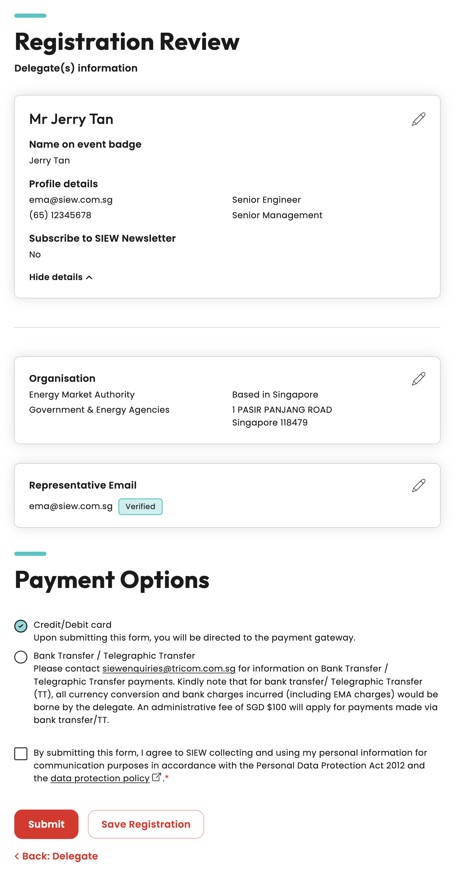
Step 6: Review & Payment
What you'll see: A summary of your registration and payment options.
What to do:
- Review all your information (you can edit if needed)
- Check your event selections and total cost
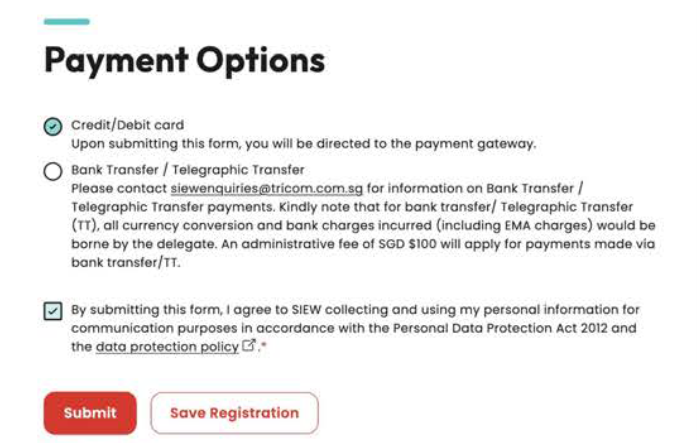
- Choose your payment method:
- Credit/Debit Card: Instant online payment
- Bank Transfer: Administrative fee of $100
- Check the box after reviewing the data protection policy
- Click “Submit” to continue payment
Tips: Edit Delegate’s Details
Step 1: Review & Payment
What you'll see: User can edit delegate's details on the Registration Review page before submitting their registration.
What to do:
- Click edit icon
Step 7: Payment Methods
a) Credit/Debit Card Payment
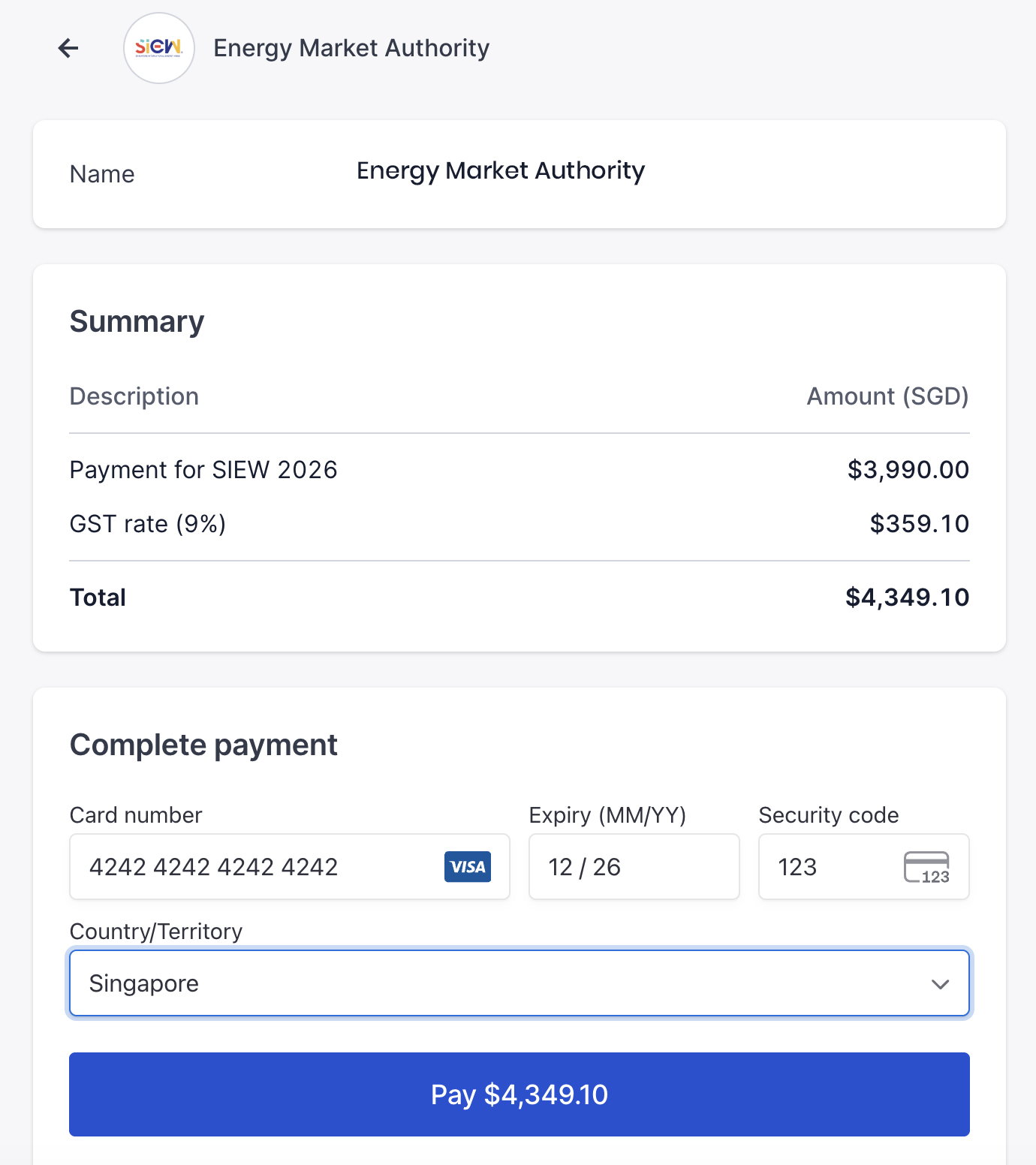
What you'll see: A secure payment gateway interface with card input fields.
What to do:
- Select “Credit/Debit Card” as your payment method on the Registration Review page and click “Submit”
- Review the total amount – no additional fees apply
- Enter Card Details:
• Card number
• Expiry date MM/YY
• CVV/CVC code
• Country
- Click “Pay” to proceed to the secure payment gateway
- Wait for confirmation – DO NOT close the browser window
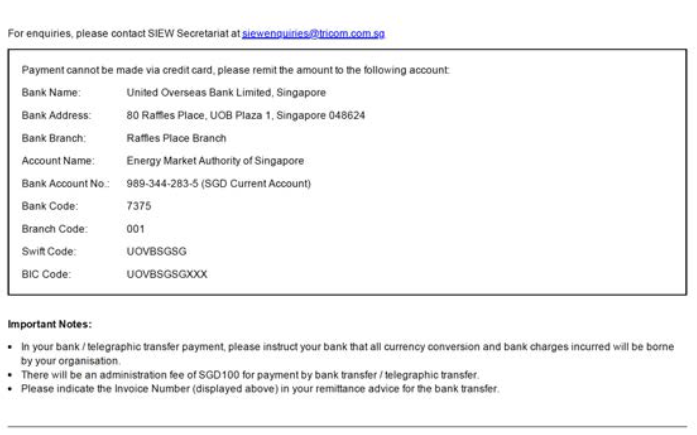
b) Bank Transfer/Telegraphic Transfer
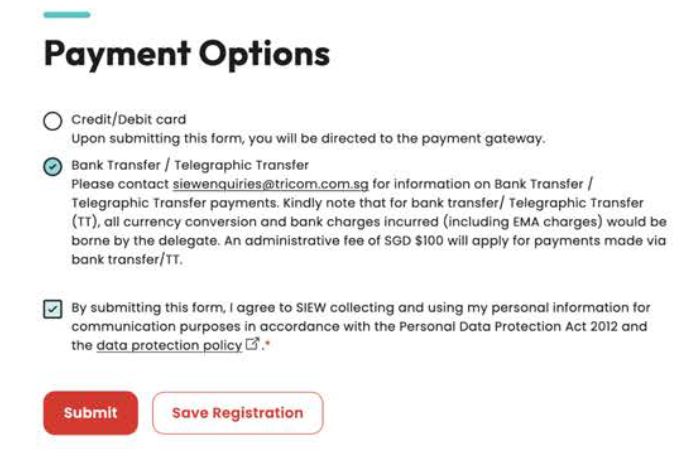
What you'll see: Bank transfer selection with invoice generation notice.
What to do:
1. Select Bank Transfer/Telegraphic Transfer as your payment method on Registration Review page and click “Submit“
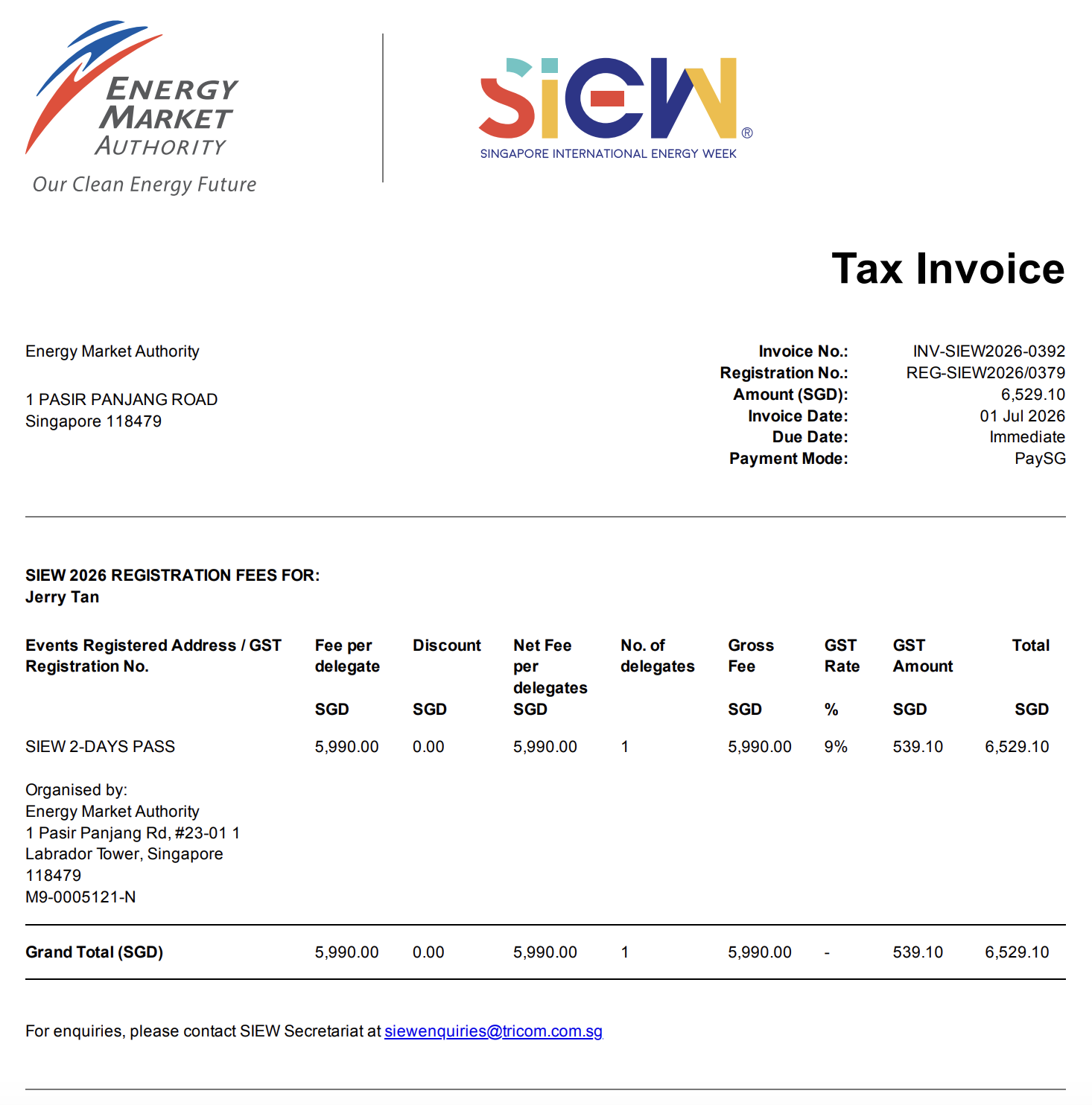
2. Receive Invoice via email with payment instruction.
3. Make payment using the following details:
Bank Transfer Details:
- Bank: United Overseas Bank Limited, Singapore
- Bank Address: 80 Raffles Place, UOB Plaza 1, Singapore 048624
- Bank Branch: Raffles Place Branch
- Account Name: Energy Market Authority of Singapore
- Account Number: 989-344-283-5 (SGD Current Account)
- Bank Code: 7375
- Branch Code: 001
- Swift Code: UOVBSGSG
- BIC Code: UOVBSGSGXXX
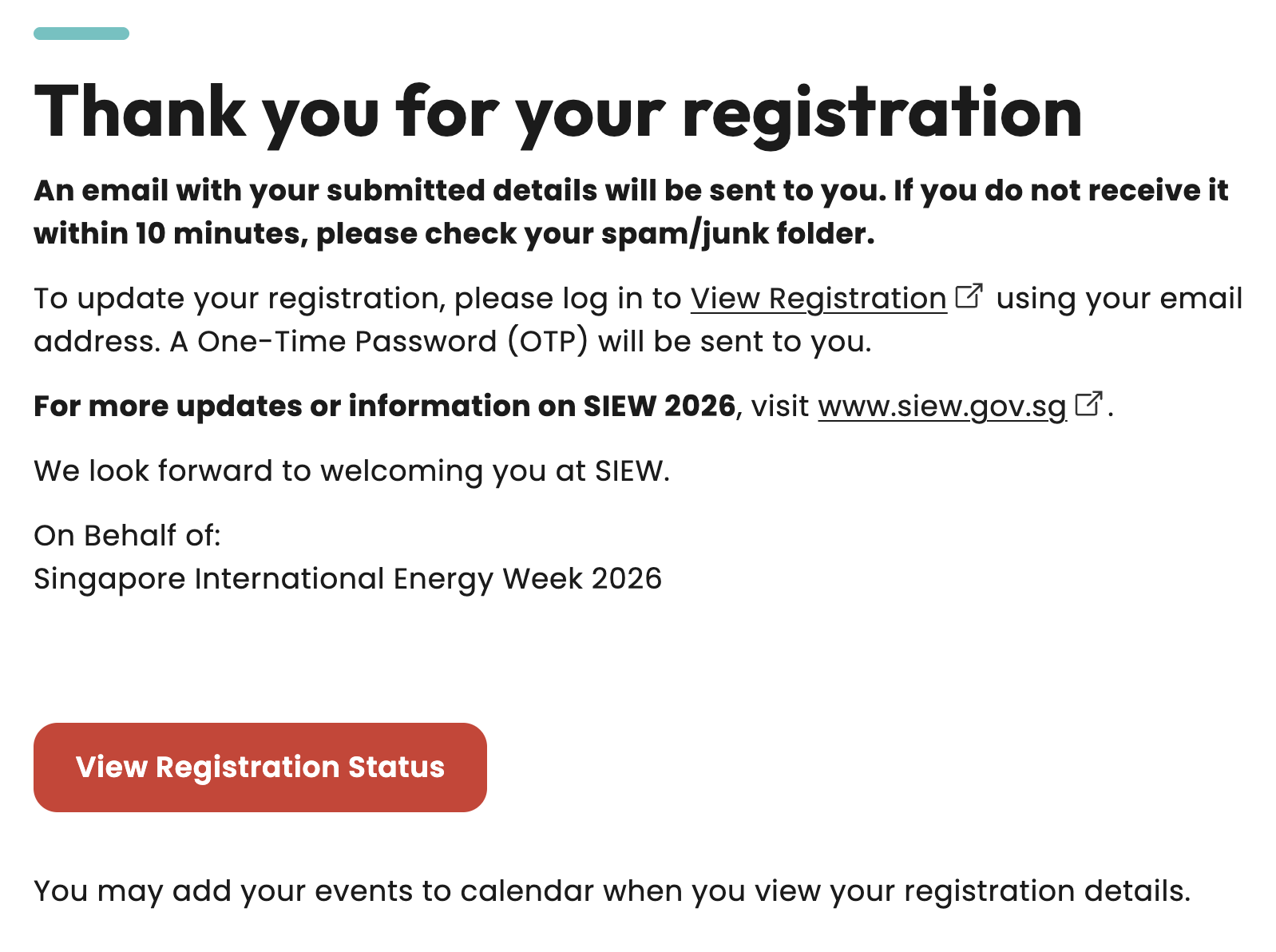
Registration Completed Successfully
What you'll see: This window confirms that the user's payment for SIEW 2026 has been successfully processed.
What to do: To check your registration status, simply click on “View Registration Status”.
Tips: Adding Promo Code to existing registration
Step 1: Landing Page Selection
What you'll see: To access your saved registration, return to the SIEW homepage.
What to do:
- Click “Already Registered?”
Step 2: Email Verification
What you’ll see: View registration page will appear where you can verify your registered email address to access or complete your registration.
Email Verification
What to do:
- Key in your email
- Click “Get OTP”
Step 3: Email Verification
What to do:
- Check your inbox for the OTP (One-Time Password)
- Enter the OTP to verify your email
- Click “Submit”
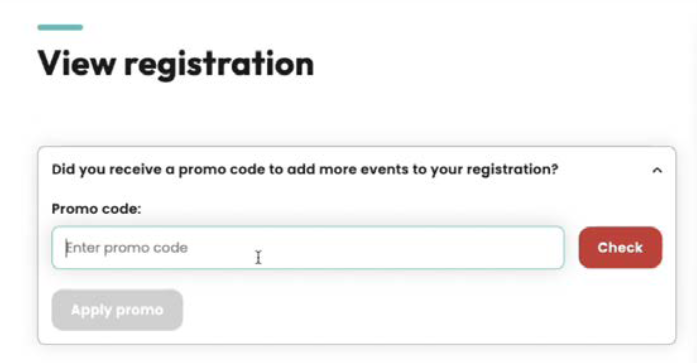
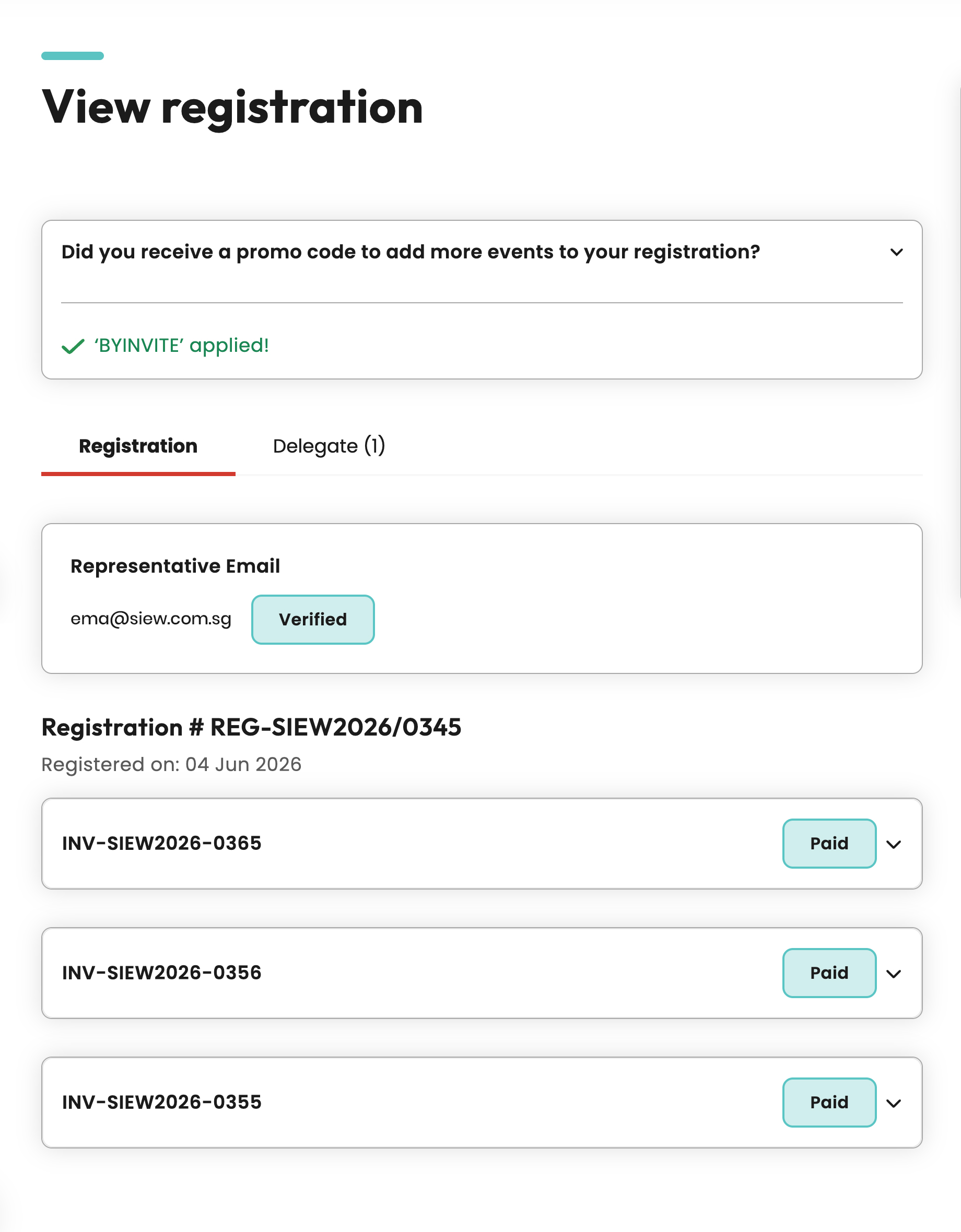
Step 4: View Registration
What to do:
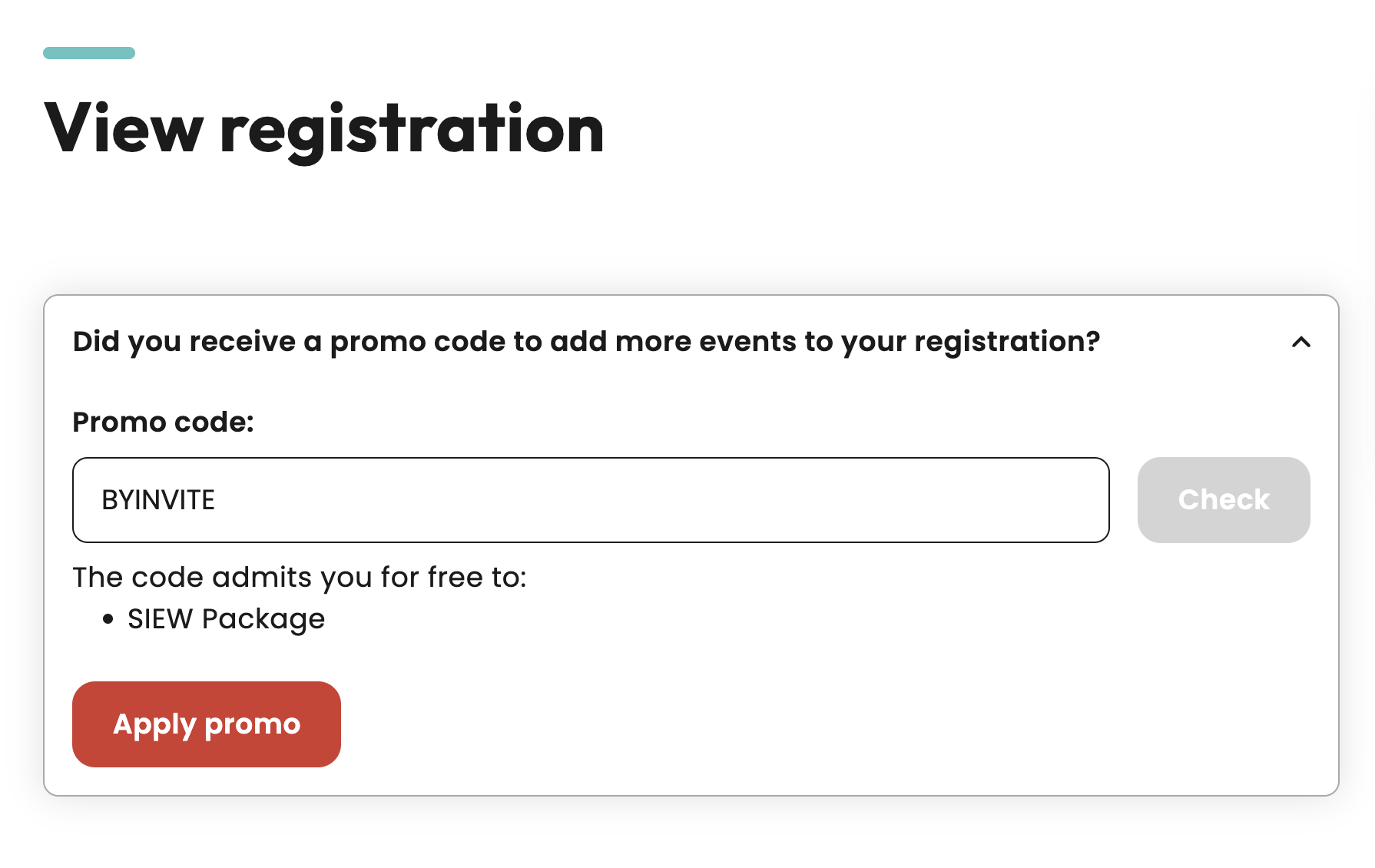
- Key in the Promo Code
- Click “Check” to validate the promo
code
- After validation, click “Apply promo”
- If you see a green checkmark his confirm that your promo code has been activated!
2. Individual On Behalf Registration
Getting Started - Register
Individual On Behalf Registration:
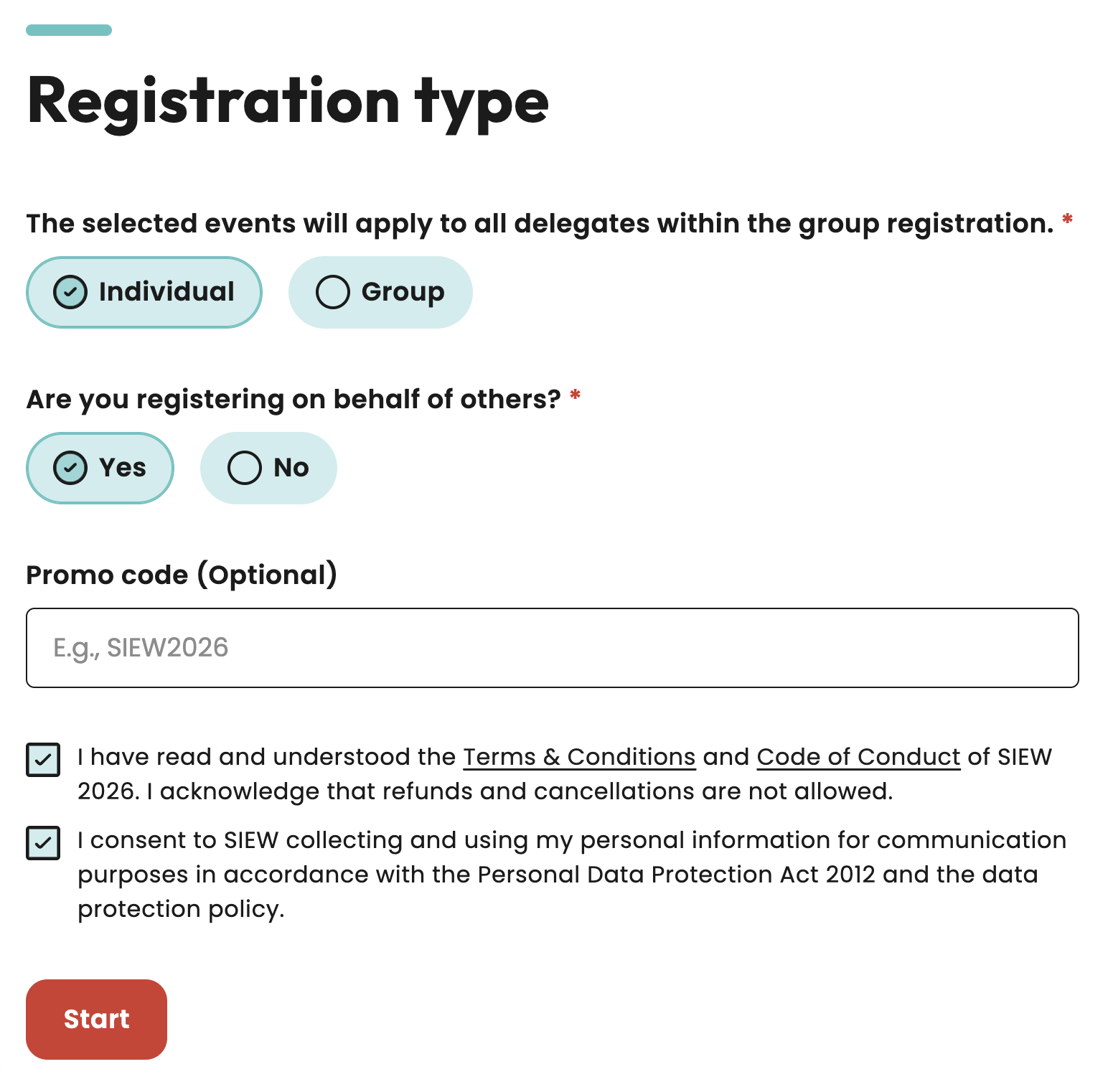
Step 1: Landing Page Selection
What you'll see: The main registration page with four registration options and a promotional code field.
What to do:
- Select your preferred registration type
- Enter a promotional code, if applicable
- Check the box after reviewing the Terms & Conditions, Code of Conduct and data protection policy
- Click “Start” to begin your registration
Step 2: Email Verification
What you'll see: An email input field with verification instructions.
What to do:
- Key in POC’s email
- Click “Get OTP”
Step 3: Email Verification
What to do:
- Check your inbox for the OTP (One-Time Password)
- Enter the OTP to verify your email
- Click “Next: Event”
Step 4: Event Selection(s)
What you'll see: A list of available SIEW events with pricing and descriptions.
What to do:
- Browse through the available events
- Refer to description for events included in each pass
- Select the pass you wish to purchase
- Click “Next: Delegate”
Tips: Save Your Registration
Step 1: Save Registration
You can save your registration progress anytime. Just click on “Save Registration” on the pages where this option is available.
What to do:
- Click “Save Registration”
Step 2: Email Verification
What you'll see: A pop-up titled “Save Your Registration” will prompt the user to enter their intended email for registration.
- Key in the Point of Contact (POC) email
- Click “Get OTP”
Step 3: Email Verification
What to do:
- Check your inbox for the OTP (One-Time Password)
- Enter the OTP to verify your email
- Click “Confirm & Save”
Your Registration Is Saved
What you'll see: A Your registration is saved page will display, indicating that you will receive an email containing a secure “link” to complete your registration when you're ready.
Tips: Return To Saved Registration
Step 1: Landing Page Selection
What you'll see: To access your saved registration, return to the SIEW homepage. Alternatively, you can access by clicking on the secured “link” in your inbox titled [Reminder] Complete your registration for SIEW 2026!
What to do:
- Click “Already Registered?”
Step 2: Email Verification
What you’ll see: View registration page will appear where you can verify your registered email address to access or complete your registration.
Email Verification
What to do:
- Click “Get OTP”
Step 3: Email Verification
What to do:
- Check your inbox for the OTP (One-Time Password)
- Enter the OTP to verify your email
- Click “Submit”
Step 5: Add delegate
What you'll see: Forms for your delegate details and organisation information.
What to do:
- Fill in all mandatory personal information fields
- Provide your organisation details and location
- Double-check all information for accuracy
- Click “Next: Review & Pay”
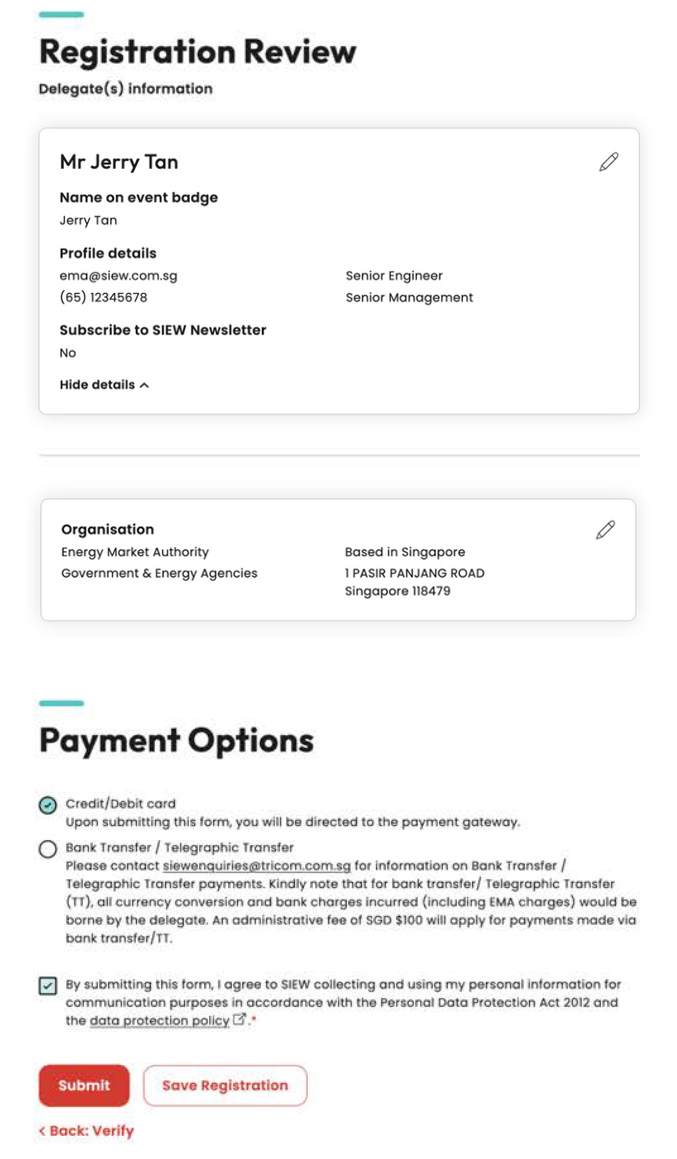
Step 6: Review & Payment
What you'll see: A summary of your registration and payment options.
What to do:
- Review all your information (you can edit if needed)
- Check your event selections and total cost
- Choose your payment method:
- Credit/Debit Card: Instant online payment
- Bank Transfer: Administrative fee of $100
- Check the box after reviewing the data protection policy
- Click “Submit” to continue payment
Tips: Edit Delegate’s Details
Step 1: Review & Payment
What you'll see: User can edit delegate's details on the Registration Review page before submitting their registration.
What to do:
- Click edit icon
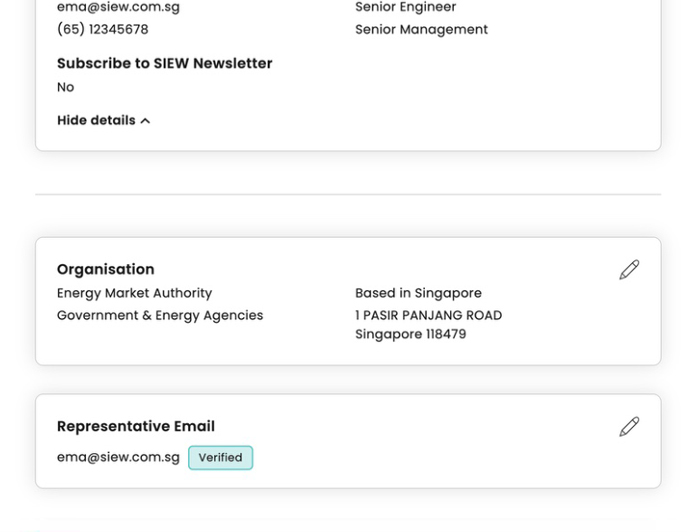
Tips: Change POC
Users can change the Point of Contact (POC) in two scenarios:
Scenario 1
For users currently completing their registration who wish to update their point of contact.
Step 1: Review & Payment
What you'll see: To change POC, user can do so on the Registration Review page
What to do:
- Click edit icon under the “Representative Email” section
Scenario 2
The user can return to the Landing Page Selection page after registering through the View Registration page to make the change.
Step 1: Landing Page Selection
What you'll see: Return to the SIEW homepage.
What to do:
- Click “Already Registered?”
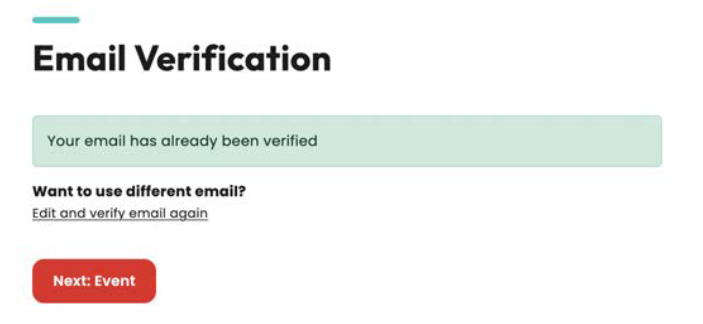
Step 2: Email Verification
What to do:
Click Edit and verify email again
Step 3: Email Verification
What to do:
- Enter the email address of the new POC
- Click “Get OTP"
Step 4: Email Verification
What to do:
- Check your inbox for the OTP (One-Time Password)
- Enter the OTP to verify your email
- Click “Update Representative Email"
Step 7: Payment Methods
a) Credit/Debit Card Payment
What you'll see: A secure payment gateway interface with card input fields.
What to do:
- Select “Credit/Debit Card” as your payment method on the Registration Review page and click “Submit”
- Review the total amount – no additional fees
apply
- Enter Card Details:
• Card number
• Expiry date MM/YY
• CVV/CVC code
• Country
- Click “Pay” to proceed to the secure payment gateway
- Wait for confirmation – DO NOT close the browser window
b) Bank Transfer/Telegraphic Transfer
What you'll see: Bank transfer selection with invoice generation notice.
What to do:
1. Select Bank Transfer/Telegraphic Transfer as your payment method on Registration Review page and click “Submit”
2. You will receive an invoice via email with payment instructions
3. Make payment using the following details:
Bank Transfer Details:
- Bank: United Overseas Bank Limited, Singapore
- Bank Address: 80 Raffles Place, UOB Plaza 1, Singapore 048624
- Bank Branch: Raffles Place Branch
- Account Name: Energy Market Authority of Singapore
- Account Number: 989-344-283-5 (SGD Current Account)
- Bank Code: 7375
- Branch Code: 001
- Swift Code: UOVBSGSG
- BIC Code: UOVBSGSGXXX
Registration Completed Successfully
What you'll see: This window confirms that the user's payment for SIEW 2026 has been successfully processed.
What to do: To check your registration status, simply click on “View Registration Status”.
Tips: Adding Promo Code to existing registration
Step 1: Landing Page Selection
What you'll see: To access your saved registration, return to the SIEW homepage.
What to do:
- Click “Already Registered?”
Step 2: Email Verification
What you’ll see: View registration page will appear where you can verify your registered email address to access or complete your registration.
Email Verification
What to do:
- Key in your email
- Click “Get OTP”
Step 3: Email Verification
What to do:
- Check your inbox for the OTP (One-Time Password)
- Enter the OTP to verify your email
- Click “Submit”
Step 4: View Registration
What to do:
- Key in the Promo Code
- Click “Check” to validate the promo code
- After validation, click “Apply promo”
- If you see a green checkmark, it confirms that your promo code has been activated!
3. Group Registration
Getting Started - Register
Group Registration:
Step 1: Landing Page Selection
What you'll see: The main registration page with four registration options and a promotional code field.
What to do:
- Select your preferred registration type
- Enter a promotional code, if applicable
- Check the box after reviewing the Terms & Conditions, Code of Conduct and data protection policy
- Click “Start” to begin your registration
Step 2: Event Selection(s)
What you'll see: A list of available SIEW events with pricing and descriptions.
What to do:
- Browse through the available events
- Refer to description for events included in each pass
- Select the pass you wish to purchase
- Click “Next: Delegate”
Tips: Save Your Registration
Step 1: Save Registration
- You can save your registration progress anytime. Just click on “Save Registration” on the pages where this option is available.
- Click “Save Registration”
Step 2: Email Verification
What you'll see: A pop-up titled “Save Your Registration” will prompt the user to enter their intended email for registration.
- Key in the Main Delegate / POC email
- Click “Get OTP”
Step 3: Email Verification
What to do:
- Check your inbox for the OTP (One-Time Password)
- Enter the OTP to verify your email
- Click “Confirm & Save”
Step 4: Your Registration Is Saved
What you'll see: A Your registration is saved page will display, indicating that you will receive an email containing a secure "link" to complete your registration when you're ready.
Tips: Return To Saved Registration
Step 1: Landing Page Selection
What you'll see: To access your saved registration, return to the SIEW homepage. Alternatively, you can access by clicking on the secured “link” in your inbox titled [Reminder] Complete your registration for SIEW 2026!
What to do:
- Click “Already Registered?”
Step 2: Email Verification
What you’ll see: View registration page will appear where you can verify your registered email address to access or complete your registration.
Email Verification
What to do:
- Click “Get OTP”
Step 3: Email Verification
What to do:
- Check your inbox for the OTP (One-
Time Password)
- Enter the OTP to verify your email
- Click “Submit”
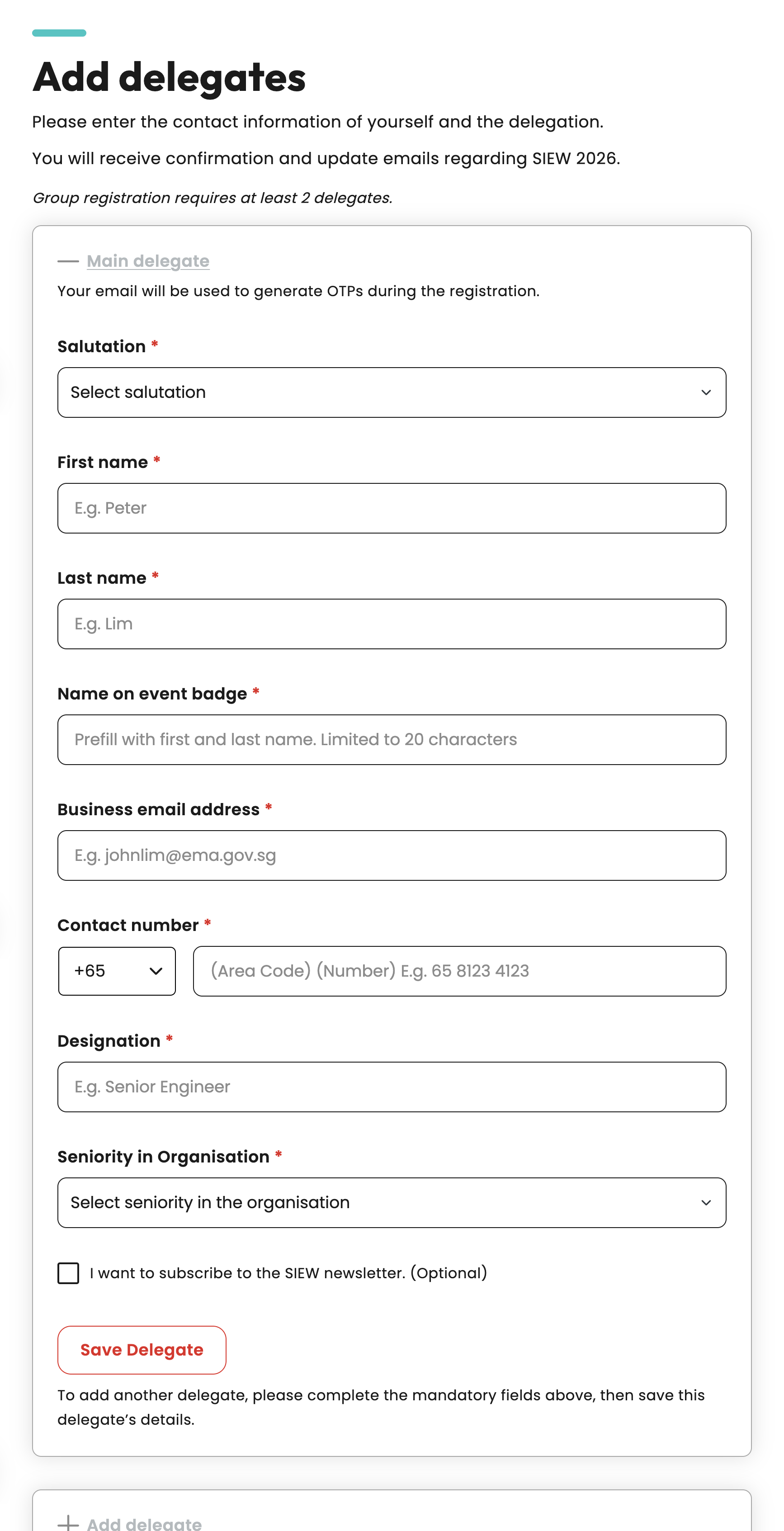
Step 3: Add delegate(s) for group
What you'll see: Forms for your delegate details and organisation information.
What to do:
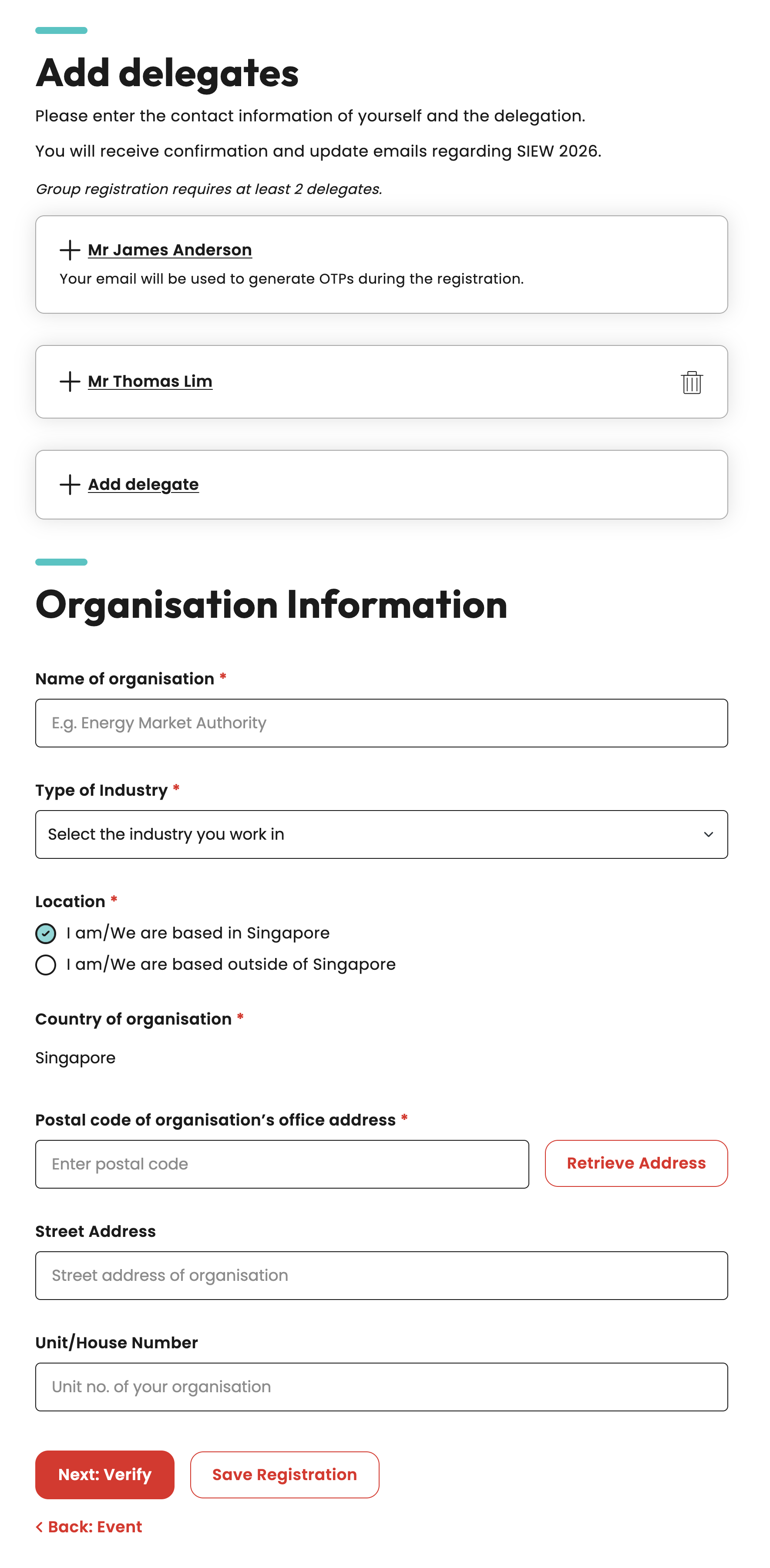
- Assign a primary point of contact (POC) to be the main delegate. Next, fill out all required fields and click “Save Delegate”
- If you wish to add more delegates, simply click “Add Delegate”
- Provide your organisation details and location
- Double-check all information for accuracy Click “Next: Verify”
Step 4: Email Verification
What you'll see: An email input field with verification instructions.
What to do:
- Click “Get OTP”
Step 5: Email Verification
What to do:
- Check your inbox for the OTP (One-Time Password)
- Enter the OTP to verify your email
- Click “Next: Event”
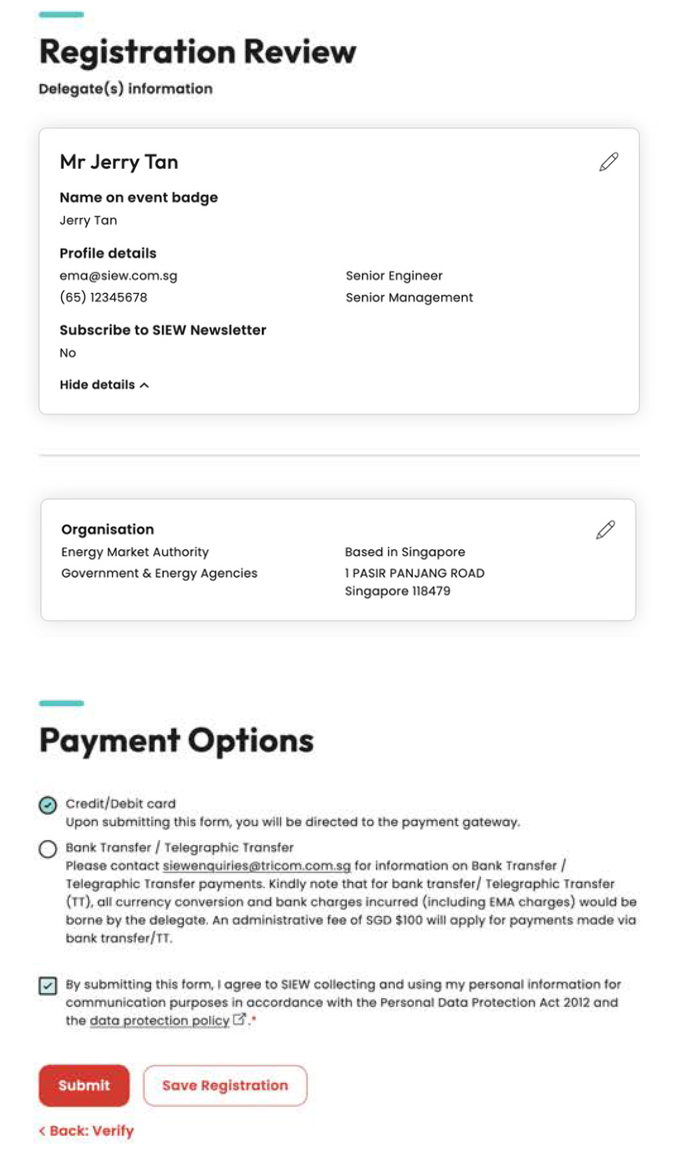
Step 6: Review & Payment
What you'll see: A summary of your registration and payment options.
What to do:
- Review all your information (you can edit if needed)
- Check your event selections and total cost
- Choose your payment method:
- Credit/Debit Card: Instant online payment
- Bank Transfer: Administrative fee of $100
- Check the box after reviewing the data protection policy
- Click “Submit” to continue payment
Tips: Edit Delegate’s Details
Step 1: Review & Payment
What you'll see: User can edit delegate's details on the Registration Review page before submitting their registration.
What to do:
- Click edit icon
Step 7: Payment Methods
a) Credit/Debit Card Payment
What you'll see: A secure payment gateway interface with card input fields.
What to do:
- Select “Credit/Debit Card” as your payment method on the Registration Review page and click “Submit”
- Review the total amount – no additional fees apply
- Enter Card Details:
• Card number
• Expiry date MM/YY
• CVV/CVC code
• Country - Click “Pay” to proceed to the secure payment gateway
- Wait for confirmation – DO NOT close the browser window
b) Bank Transfer/Telegraphic Transfer
What you'll see: Bank transfer selection with invoice generation notice. You will receive an invoice via email with payment instructions.
What to do:
1. Select Bank Transfer/Telegraphic Transfer as your payment method on the Registration Review page and click “Submit”
2. Receive Invoice via email with payment instructions
3. Make payment using the following details:
Bank Transfer Details:
- Bank: United Overseas Bank Limited, Singapore
- Bank Address: 80 Raffles Place, UOB Plaza 1, Singapore 048624
- Bank Branch: Raffles Place Branch
- Account Name: Energy Market Authority of Singapore
- Account Number: 989-344-283-5 (SGD Current Account)
- Bank Code: 7375
- Branch Code: 001
- Swift Code: UOVBSGSG
- BIC Code: UOVBSGSGXXX
Registration Completed Successfully
What you'll see: This window confirms that the user's payment for SIEW 2026 has been successfully processed.
What to do: To check your registration status, simply click on “View Registration Status”.
Tips: Adding Promo Code to existing registration
Step 1: Landing Page Selection
What you'll see: To access your saved registration, return to the SIEW homepage.
What to do:
- Click “Already Registered?”
Step 2: Email Verification
What you’ll see: View registration page will appear where you can verify your registered email address to access or complete your registration.
Email Verification
What to do:
- Key in your email
- Click “Get OTP”
Step 3: Email Verification
What to do:
- Check your inbox for the OTP (One-Time Password)
- Enter the OTP to verify your email
- Click “Submit”
Step 4: View Registration
What to do:
- Key in the Promo Code
- Click “Check” to validate the promo
code
- After validation, click “Apply promo”
- If you see a green checkmark, it confirms that your promo code has been activated!
4. Group On Behalf Registration
Getting Started - Register
Group On Behalf Registration:
Step 1: Landing Page Selection
What you'll see: The main registration page with four registration options and a promotional code field.
What to do:
- Select your preferred registration type
- Enter a promotional code, if applicable
- Check the box after reviewing the Terms & Conditions, Code of Conduct and data protection policy
- Click “Start” to begin your registration
Step 2: Email Verification
What you'll see: An email input field with verification instructions.
What to do:
- Key in POC’s email
- Click “Get OTP”
Step 3: Email Verification
What to do:
- Check your inbox for the OTP (One-Time Password)
- Enter the OTP to verify your email
- Click “Next: Event”
Step 4: Event Selection(s)
What you'll see: A list of available SIEW events with pricing and descriptions.
What to do:
- Browse through the available events
- Refer to description for events included in each pass
- Select the pass you wish to purchase
- Click “Next: Delegate”
Tips: Save Your Registration
Step 1: Save Registration
- You can save your registration progress anytime. Just click on “Save Registration” on the pages where this option is available.
What to do:
- Click “Save Registration”
Step 2: Email Verification
What you'll see: A pop-up titled “Save
- Your Registration” will prompt the user to enter the Main Delegate / POC email
- To enter the Main Delegate / POC email for registration.
What to do:
- Key in the Point of Contact (POC) email
email for this group registratio+
- Click “Get OTP”
Step 3: Email Verification
What to do:
- Check your inbox for the OTP (One-Time Password)
- Enter the OTP to verify your email
- Click “Confirm & Save”
Your Registration Is Saved
What you'll see: A Your registration is saved page will display, indicating that you will receive an email containing a secure “link” to complete your registration when you're ready.
Tips: Return To Saved Registration
Step 1: Landing Page Selection
What you'll see: To access your saved registration, return to the SIEW homepage. Alternatively, you can access by clicking on the secured “link” in your inbox titled [Reminder] Complete your registration for SIEW 2026!
What to do:
- Click “Already Registered?”
Step 2: Email Verification
What you’ll see: View registration page will appear where you can verify your registered email address to access or complete your registration.
Email Verification
Email VerificationWhat to do:
- Click “Get OTP”
Step 3: Email Verification
What to do:
- Check your inbox for the OTP (One-Time Password)
- Enter the OTP to verify your email
- Click “Submit”
Step 5: Add delegate(s) for group
What you'll see: Forms for your delegate details and organisation information.
What to do:
- Fill in all mandatory personal information fields
- Provide your organisation details and location
- Double-check all information for accuracy and click “Save delegate”
- If you wish to add more delegates, simply click“Add Delegate”
- Provide your organisation details and location
- Double-check all information for accuracy
- Click “Next: Verify”
Step 6: Review & Payment
What you'll see: A summary of your registration and payment options.
What to do:
- Review all your information (you can edit if needed)
- Check your event selections and total cost
- Choose your payment method:
- Credit/Debit Card: Instant online payment
- Bank Transfer: Administrative fee of $100
- Check the box after reviewing the data protection policy
- Click “Submit” to continue payment
Tips: Edit Delegate’s Details
Step 1: Review & Payment
What you'll see: User can edit delegate's details on the Registration Review page before submitting their registration.
What to do:
- Click edit icon
Tips: Change POC
Users can change the Point of Contact (POC) in two scenarios:
Scenario 1
For users currently completing their registration who wish to update their point of contact.
Step 1: Review & Payment
What you'll see: To change POC, user can do so on the Registration Review page
What to do:
- Click edit icon under the “Representative Email” section
Scenario 2
The user can return to the Landing Page Selection page after registering through the View Registration page to make the change.
Step 1: Landing Page Selection
What you'll see: Return to the SIEW homepage.
What to do:
- Click “Already Registered?”
Step 2: Email Verification
What to do:
- Click Edit and verify email again
Step 3: Email Verification
What to do:
- Enter the email address of the new POC
- Click “Get OTP”
Step 4: Email Verification
What to do:
- Check your inbox for the OTP (One-Time Password)
- Enter the OTP to verify your email
- Click “Update Representative Email”
Step 7: Payment Methods
a) Credit/Debit Card Payment
What you'll see: A secure payment gateway interface with card input fields.
What to do:
- Select “Credit/Debit Card” as your payment method
- Click “Submit”
- Review the total amount – no additional fees apply
- Enter Card Details:
• Card number
• Expiry date MM/YY
• CVV/CVC code
• Country - Click “Pay" to proceed to the secure payment gateway
- Wait for confirmation – DO NOT close the browser window
b) Bank Transfer/Telegraphic Transfer
What you'll see: Bank transfer selection with invoice generation notice.
What to do:
1. Select Bank Transfer/Telegraphic Transfer as your payment method on Registration Review page and click “Submit”
2. Receive Invoice via email with payment instructions
3. Make payment using the following details:
Bank Transfer Details:
- Bank: United Overseas Bank Limited, Singapore
- Bank Address: 80 Raffles Place, UOB Plaza 1, Singapore 048624
- Bank Branch: Raffles Place Branch
- Account Name: Energy Market Authority of Singapore
- Account Number: 989-344-283-5 (SGD Current Account)
- Bank Code: 7375
- Branch Code: 001
- Swift Code: UOVBSGSG
- BIC Code: UOVBSGSGXXX
Registration Completed Successfully
What you'll see: This window confirms that the user's payment for SIEW 2026 has been successfully processed.
What to do: To check your registration status, simply click on “View Registration Status".
Tips: Adding Promo Code to existing registration
Step 1: Landing Page Selection
What you'll see: To access your saved registration, return to the SIEW homepage.
What to do:
- Click “Already Registered?”
Step 2: Email Verification
What you’ll see: View registration page will appear where you can verify your registered email address to access or complete your registration.
Email Verification
What to do:
- Key in your email
- Click “Get OTP”
Step 3: Email Verification
What to do:
- Check your inbox for the OTP (One-Time Password)
- Enter the OTP to verify your email
- Click “Submit"
Step 4: View Registration
What to do:
- Key in the Promo Code
- Click “Check” to validate the promo code
- After validation, click “Apply promo”
- If you see a green checkmark, it confirms that your promo code has been activated!